
When you first open the production console, it shows the items to be processed on all workstations. The following instructions tell you how to reduce the items in the list so that it shows only the work that is relevant to a particular employee. This is typically the work that is to be done on a particular workstation, but you can filter on various criteria.
Filter and employee information is saved so that the setup does not have to be done every time the console is used. It can only be changed by admin users of the production console.
1. If you use a full version of STRUMIS, go to Production
> Production Console.
The Production Console form is displayed.
If you log into STRUMIS with a Production Console Edition licence, the
Production Console form is displayed when
you log in.
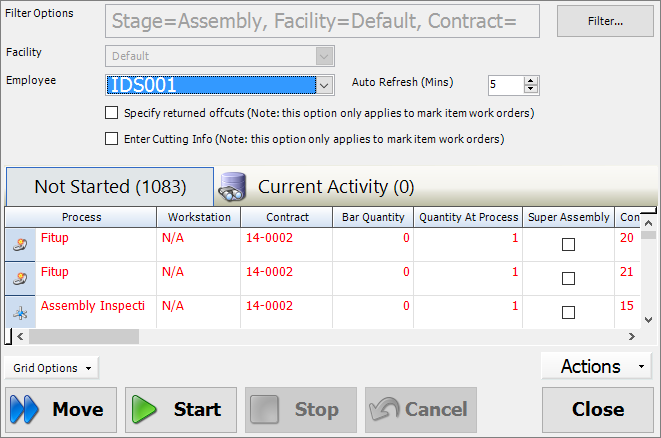
2. Select an employee from the drop-down list.
This is the employee for whom you are setting up the production console.
3. Click the Filter button
in the top right-hand corner of the form.
The Production Console - Work Order Filter
form is displayed.
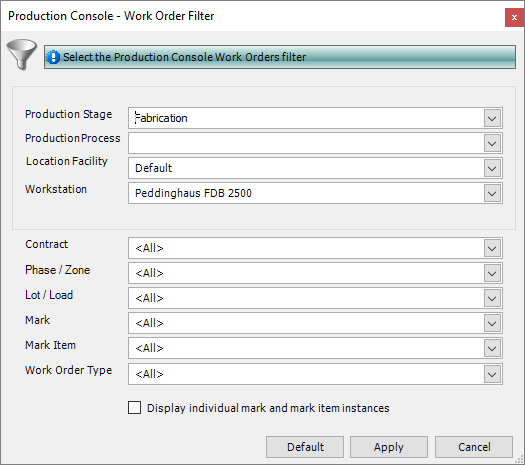
You can filter work using the following criteria: production stage, production
process, facility, workstation, contract, phase/zone, lot/load, mark,
mark item, and work order type.
4. Select the necessary filter criteria for the employee
and click Apply.
The Production Console - Work Order Filter
form closes and the items in the list on the production console are reduced
according to the filter criteria that you selected.