
When you have specified the items to take out of the inventory to send to your customer, use the following instructions to complete the sales order delivery record.
1. Open a sales order delivery record.
(See Find
and edit an existing record.)
2. Click the Complete button.
The system issues the following warning if you have items that cannot be
allocated from the inventory:
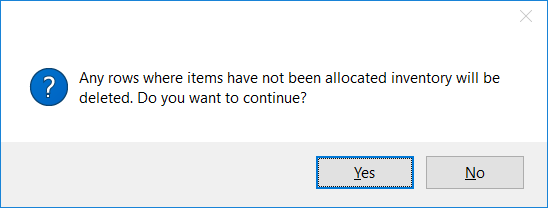
This message is issued when you have items in the sales order delivery
record that your customer wants to buy but that you do not have in stock.
If you click Yes and continue, these items
are deleted from the sales order delivery record and do not appear on
delivery notes and packing slips. However, the items remain in the Lines tab of the sales order, which means
that in the future, when you have the items in stock again, you can return
to the sales order and create another sales order delivery record for
later delivery.
 |
§ You cannot edit the fields in a completed sales order delivery record. § When you complete a sales order delivery record, the goods that you are sending to your customer are removed from the inventory. § Once you have completed a sales order delivery record, you can raise an invoice against the delivered items. |