
1. Open a sales order.
(See Find
and edit an existing record.)
2. Click Actions (button) >
Deliver Sales Order.
A new Sales Order Delivery record is displayed.
The following tabs are available:
Sales Order
Delivery - Details
Sales Order
Delivery - Lines
Sales Order Delivery
- Notes
Sales
Order Delivery - Information
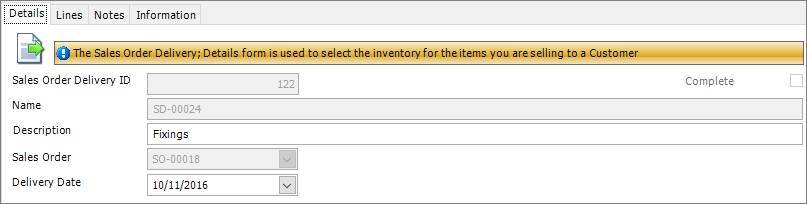
3. Use the Details tab to view
the related sales order and to change the description and delivery date
in the Details tab if necessary.
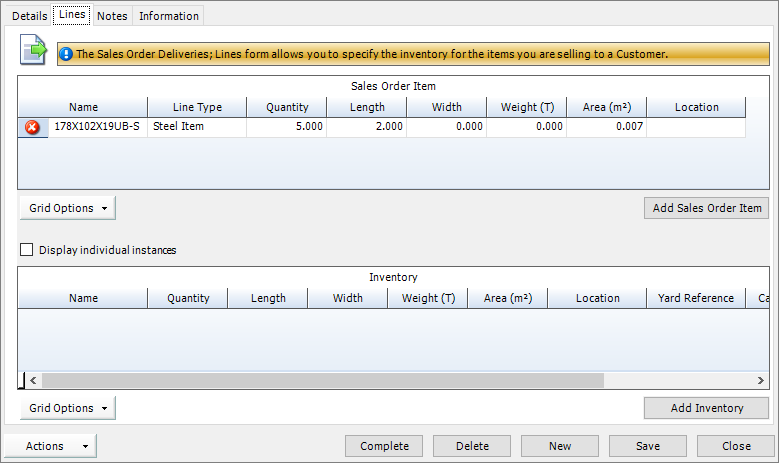
4. Use the Lines tab to assign
items that you have in stock to the items that your customer ordered.
The page is split into two grids; Sales Order Item
at the top and Inventory at the bottom.
§ The Sales
Order Item grid lists the items that your customer wants to buy.
These are pre-populated from the sales order.
 indicates that the items have been fully allocated from your inventory.
 indicates that you do not have the required quantity in the inventory;
you can manually assign a different inventory item or you can use the
purchase order feature in STRUMIS to order the necessary items and assign
them later.
indicates that you do not have the required quantity in the inventory;
you can manually assign a different inventory item or you can use the
purchase order feature in STRUMIS to order the necessary items and assign
them later.
§ The Inventory
grid shows the inventory items that have been assigned to the a sales
order item.
Click a line in the Sales Order Item grid
to see the matched inventory item in the Inventory
grid.
 |
§ You can create a sales order delivery record for a sales order but not for a sales order quote. § You can create several sales order delivery records for a single sales order. This is because you may want to deliver the items on the sales order at different times. § At least one item must be specified in the Lines tab of the Sales Order Delivery record. If this is not the case, the Deliver Sales Order option is not available. |