
The Import Estimate Wizard - Item Listing
screen, lists items from the import file.
Those that are not recognised by STRUMIS
are preceded by a  icon. This means that the system
cannot match the item from the import file with an item in the STRUMIS
item library. Here are some examples of when this might happen:
icon. This means that the system
cannot match the item from the import file with an item in the STRUMIS
item library. Here are some examples of when this might happen:
§ In your STRUMIS item library, there is a section called:
406X178X54UB
In the CAD import file, the same section might be called:
UB406*178*54
The Import Estimate Wizard does not recognise
the section name from the CAD file because a *
character has been used to separate the dimensions instead of X.
This is the most common reason for unrecognizable items.
§ In STRUMIS, you have defined a steel grade:
S275JR
In the CAD import file, the grade might be displayed as:
S275-JR
The Import Estimate Wizard does not recognise
the grade from the CAD file because it contains a
- character.
§ In the CAD import file, a custom or non-standard item is defined such as grating or a plate girder, which does not exist in your STRUMIS item library.
There are several ways to remedy the situation; they are described in the following sections:
Use the Item Picker to manually map (or cross reference) the unrecognised item to an item in the item library. Take a look at the illustration below:
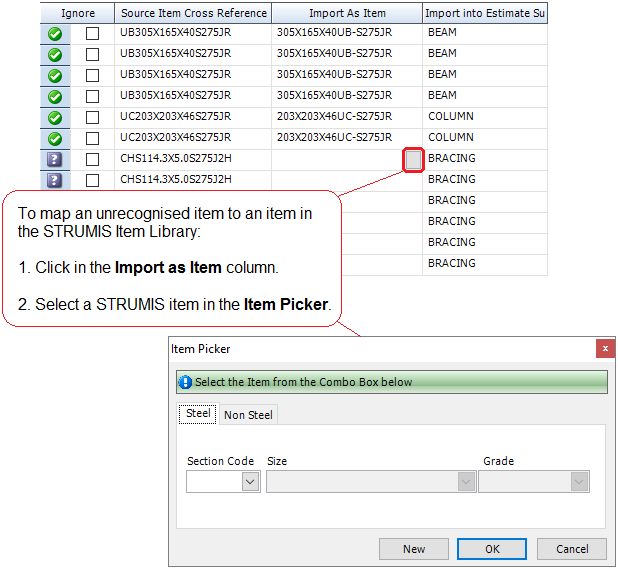
On the final wizard screen, you have an option, Persist cross references, which allows you to retain the mappings for future imports.
You can choose to ignore the unrecognised item, which means that it is not imported into the estimate. To do this, select the check box in the Ignore column. You can use the Check/Uncheck button to select or clear the check box in multiple highlighted rows as shown in the illustration below:
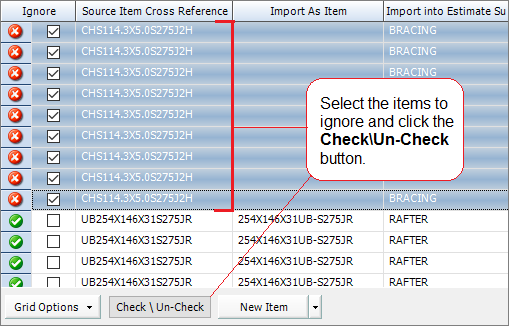
When you complete the import, go to the Item Library and define the steel or non-steel item. You can then re-import the CAD file. For further information see Create an Item in the Item Library.
To update the item library:
§ You can click the New Item button to access the item library from within the Import Estimate Wizard. Define the steel or non-steel item and close the Item Library. The item is now recognised by STRUMIS. This will behave in the same way as adding a new item from the Item Library. For more information see Create an Item.

§ You can use information from the import file to add the unrecognised steel and non-steel items to the item library. To do this select the unrecognised items in the grid you wish to create, click the down arrow to the right of the New Item button (as shown below) and select Create Unrecognised Items. If no lines are selected in the grid, the form will not load.
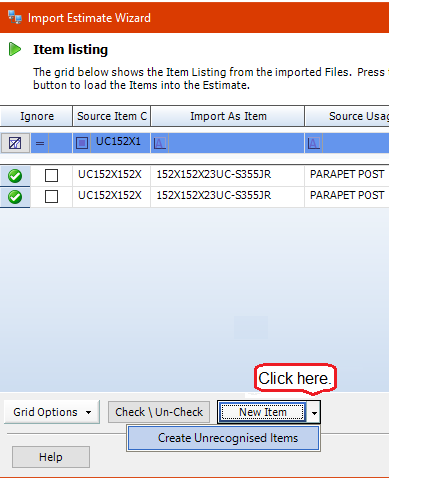
The Create Unrecognised Items form is displayed. The grid contains details about the unrecognised items from the CAD file.

If the Section Type specified is not indicated to be a custom girder in the Item Library then the second half of the table will not be populated.
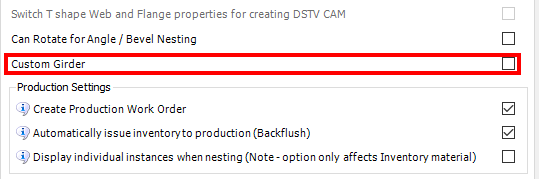
Enter all the information required into this form, including any Labour Usages you wish to assign. This can be done using the Add Labour Usages button with a row selected. Without a row selected, the button will be inactive.
When the Labour Usage Search Form is active, enter your preferred search details and click Search. This will populate all available Labour Usages that have been entered into STRUMIS. Select the preferred Labour Usage and click Add.
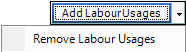
If you wish to remove unwanted Labour Usages, select a line in the grid and use the Remove Labour Usages option behind the arrow to the side of the Labour Usages button.
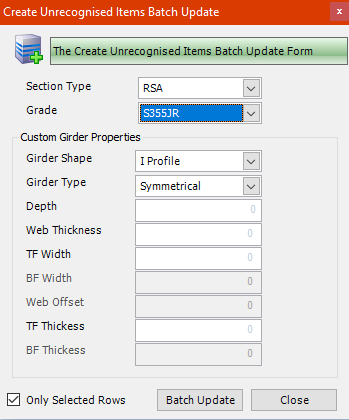
Batch Update can also be used on this form to change the properties of one or many items at the same time.
When you are satisfied with your changes, click OK on this form to create the items in the Item Library. The item is now recognised by STRUMIS.
§ Alternatively, if you do not wish to use the options available in the Import Wizard to add new items to the library or make adjustments, you can cancel the wizard and add the unrecognised item to the Item Library. When you are satisfied that all the correct sections and properties are added to your library with you can then re-start the wizard and complete the import.
|
The Create Unrecognised Items form can be used for creating custom girders and standard items alike. If it is used, the weight will need to be added to the item properties in the Item Library for any new additions to the library. |
For grade discrepancies, it is recommended you cancel the wizard, add the unrecognised grade to the grade table as a cross reference (see Grade Details) and re-start the wizard.