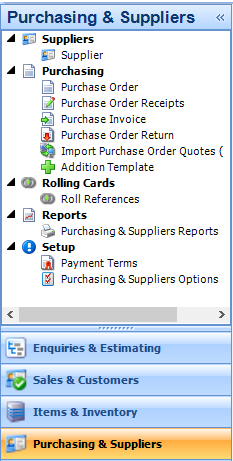
The most common way to create a Purchase Order Receipt is from within a Purchase Order. The following instructions tell you how to do this.
|
Use the search options to make sure the Purchase Order Receipt is not already in the system. See Find and edit an existing record if you need help with this. |
1. Open a Purchase
Order.
To create a Purchase Order Receipt, the purchase order must
have a status of Released.
2. Click Actions (button) > Receive Order.
A Purchase Order Receipt form is created
and displayed. It lists the items from the Purchase
Order.
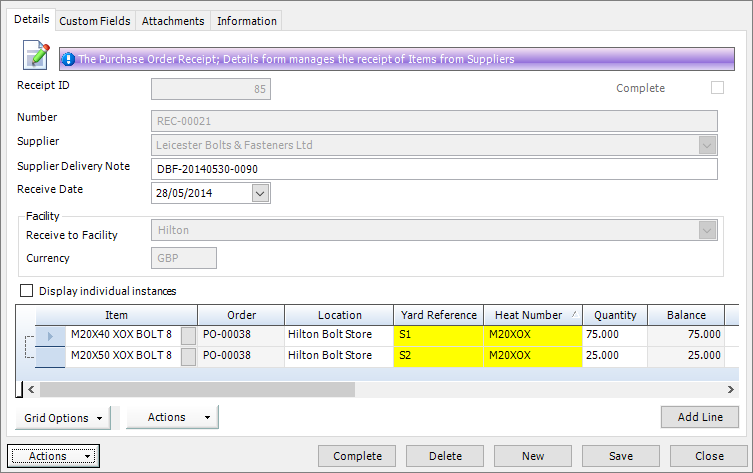
It has the following tabs:
§ Details
Enter supplier details and list the items that you have received.
See Purchase
Order Receipt - Details for a full list of fields and buttons on this
tab.
§ Custom
Fields
See Purchase
Order Receipt - Custom Fields for a full list of the fields and buttons
on this tab.
§ Attachments
See Purchase
Order Receipt - Attachments for a full list of the fields and buttons
on this tab.
§ Information
See Purchase
Order Receipt - Information for a full list of the fields and buttons
on this tab.
3. Supplier information is pre-populated from the Purchase
Order. Specify a delivery note reference and the date when you
received the goods, and click Save.
You can add extra lines if the receipt covers items from other Purchase
Orders. See Add
items to a purchase order receipt.
|
You can also create a Purchase Order Receipt from the menu. 1. Go to Purchasing & Suppliers > Purchase Order Receipts
2. Click New. 3. Record
the items that you received and click Save. |